Talking to Maggie
Your AI assistant who helps you get things done.
Who is Maggie?
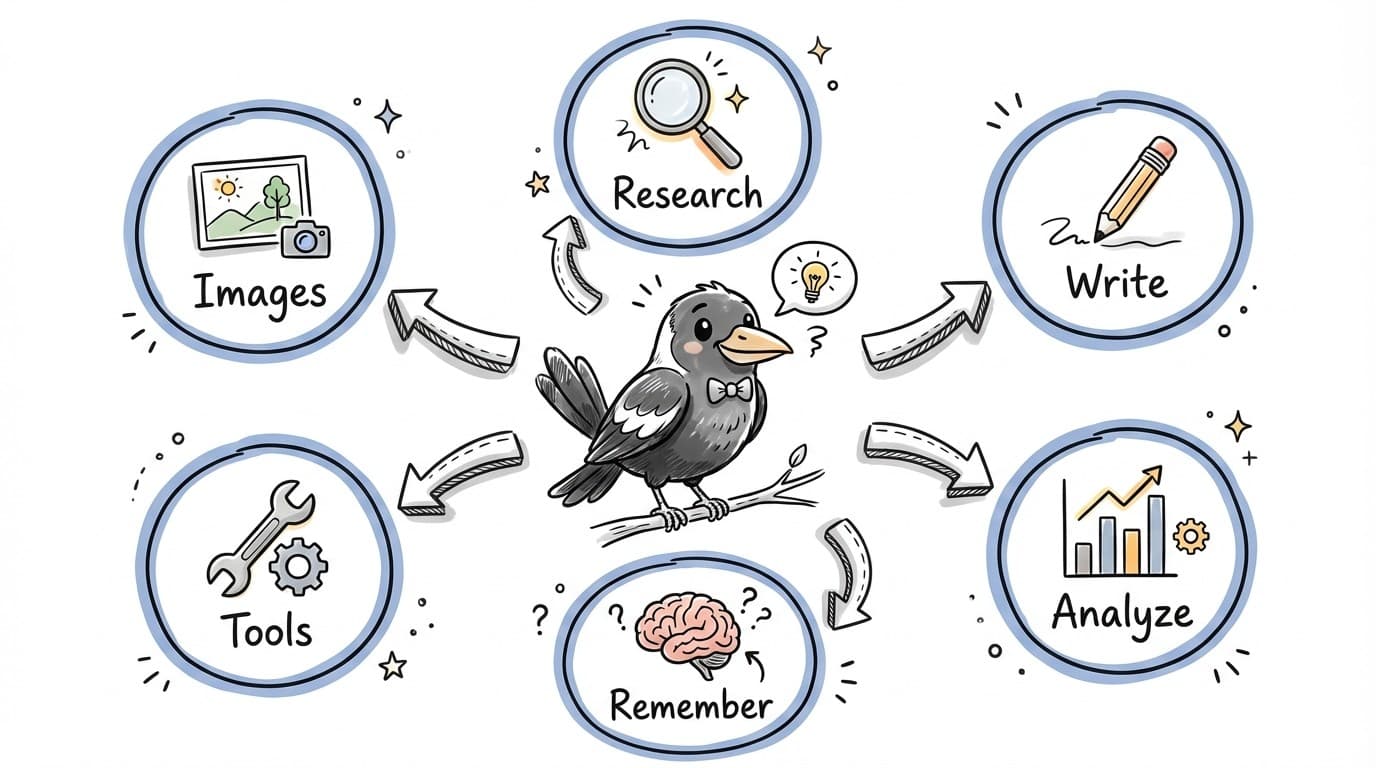
Maggie is your team's AI assistant built right into Magpai. She can help you research topics, write content, analyze data, and work with your connected tools. Think of her as a helpful colleague who's always available and never forgets what you've told her.
The best part?
You don't need any technical skills to work with Maggie. Just talk to her like you would a colleague - ask questions, give instructions, or describe what you need help with.
Where to Find Maggie
You can chat with Maggie in several places:
- Chat - The main chat area in your team menu where you can start new conversations
- Right-click menu - Select any item in The Brain and choose "Ask Maggie" to get help with it
- Workflows - Maggie powers the automation in your workflows
What Maggie Can Do
Research & Find Information
Maggie can search the web for current information or look through your team's saved knowledge in The Brain.
Try saying:
- "Research the latest trends in sustainable packaging"
- "What do we have saved about our competitor's pricing?"
Write & Create Content
From emails to blog posts to summaries, Maggie can help you write almost anything.
Try saying:
- "Write a follow-up email to the client about our meeting"
- "Summarize this document in 3 bullet points"
Analyze & Explain
Give Maggie data, documents, or complex topics and she'll help you understand them.
Try saying:
- "What are the key takeaways from this report?"
- "Compare these two proposals and highlight the differences"
Remember Important Things
Tell Maggie facts about your business and she'll remember them for future conversations.
Try saying:
- "Remember that our office hours are 9am-5pm Monday to Friday"
- "What do you remember about our refund policy?"
Work with Your Tools
Maggie can interact with connected services like Slack, HubSpot, Google Drive, and more.
Try saying:
- "Find the latest proposal in Google Drive"
- "What deals are in our HubSpot pipeline?"
Create Images & Media
Need a quick image or visual? Maggie can generate images based on your description.
Try saying:
- "Create an image of a modern office space"
- "Generate a simple diagram showing our process"
How to Talk to Maggie
Maggie understands natural language, so just talk to her like you would a colleague. Here are some tips to get the best results:
Be specific about what you need
Instead of "Help me with the report," try "Summarize the Q3 sales report and highlight the top 3 performing products."
Give context when it helps
You can attach files, share links, or mention items from The Brain to give Maggie more context about what you're working on.
Ask follow-up questions
Maggie remembers your conversation, so you can ask follow-up questions or say "Can you expand on that?" or "Make it shorter."
Tell her to remember things
When you share important business info, say "Remember this" and Maggie will save it for future reference.
Sharing Files & Links
You can give Maggie additional context by sharing:
- Documents - Upload PDFs, Word docs, or spreadsheets for Maggie to read
- Images - Share screenshots or photos for Maggie to analyze
- Links - Paste a URL and Maggie will read the page content
- Brain items - Reference saved items from your team's Brain
Your Conversations
Every chat with Maggie is saved automatically. You can:
- Find past conversations in the Chat section
- Share conversations with team members
- Pick up where you left off - Maggie remembers the context
- Link conversations to items in The Brain for organization
Quick Start
- Go to Chat in your team menu
- Click the message box at the bottom
- Type your question or request
- Press Enter or click Send
- Maggie will respond - you can continue the conversation from there