Approval Steps
Generate AI content for human review with five different presentation modes.
Overview
Approval steps use AI to generate content, then pause for human review. The reviewer can edit, approve, or reject the content before the workflow continues. Different modes offer different ways to present and interact with the generated content.
Note: This is different from the guardrails feature on Prompt Steps. Approval Steps generate content for review, while guardrails pause before executing actions. See the Approvals Guide for a comparison.
Configuration
| Property | Type | Description |
|---|---|---|
| name | string | Display name for the step |
| prompt | string | Instructions for generating content |
| mode | string | Content presentation mode |
| modelId | string? | AI model override (optional) |
| content | varies | Generated content (set at runtime) |
Content Modes
Choose the mode that best fits how you want the reviewer to interact with the content:
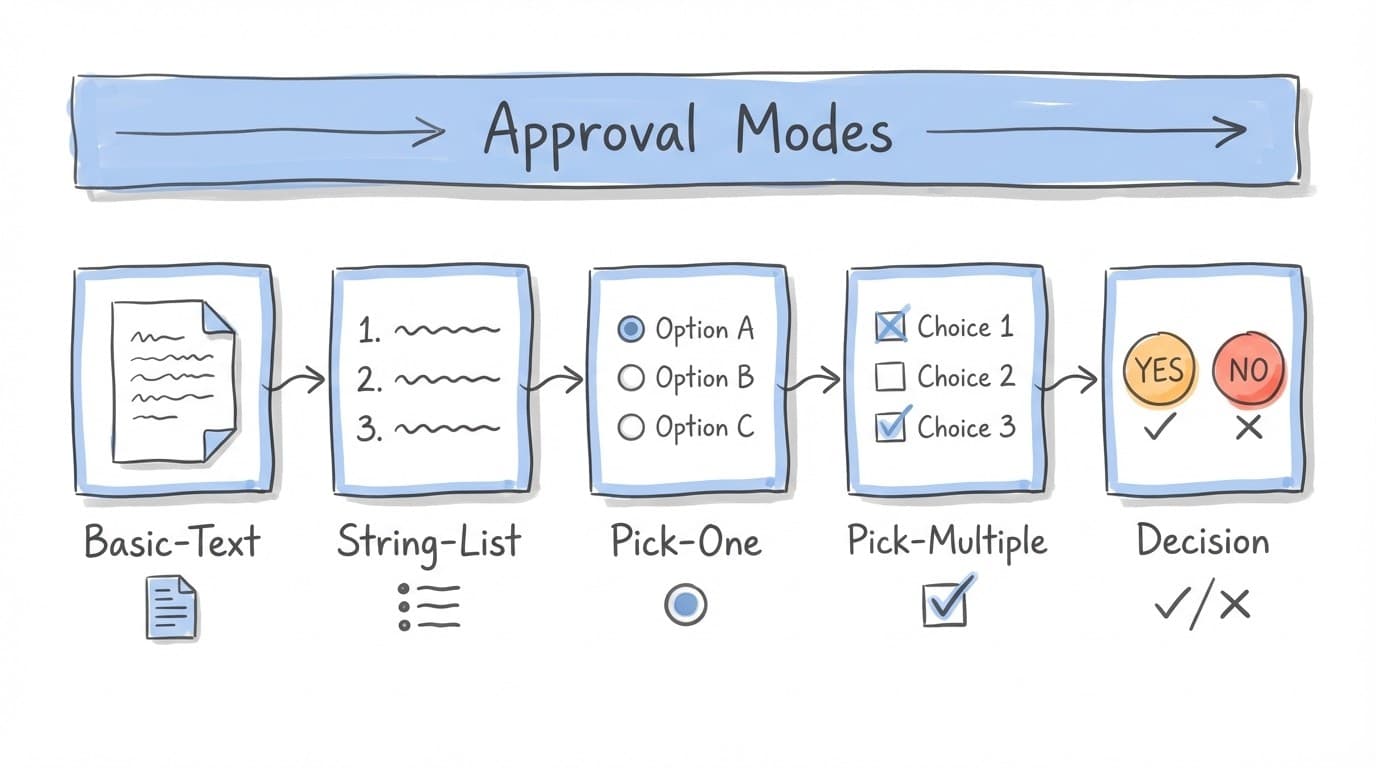
basic-textEditable Text
Generate rich HTML content that the reviewer can edit inline. Best for documents, emails, or any free-form text.
Use case:
Email drafts, blog posts, reports, summaries
Output format:
string-listOrdered List
Generate a list of items that can be reordered, edited, or removed. Each item is a table row with columns.
Use case:
Task lists, ranked results, prioritized items
Output format:
pick-oneSingle Selection
Generate options where the reviewer must select exactly one. Good for decisions or recommendations.
Use case:
Choosing a vendor, selecting a strategy, picking a design
Output format:
pick-multipleMultiple Selection
Generate options where the reviewer can select one or more. Good for filtering or combining choices.
Use case:
Selecting features, choosing participants, filtering results
Output format:
decisionYes/No Decision
Present a question requiring a simple yes or no answer, with optional notes from the reviewer.
Use case:
Go/no-go decisions, approval gates, confirmations
Output format:
Example Configurations
Email Draft (basic-text)
{
  "id": "draft-email",
  "type": "approval",
  "name": "Review Email Draft",
  "prompt": "Write a professional email summarizing the research findings. Keep it concise and actionable.",
  "mode": "basic-text"
}
Vendor Selection (pick-one)
{
  "id": "select-vendor",
  "type": "approval",
  "name": "Select Vendor",
  "prompt": "Based on the requirements, generate 3 vendor recommendations with pros and cons. Format as: | Vendor | Strengths | Price |",
  "mode": "pick-one"
}
Launch Decision (decision)
{
  "id": "launch-decision",
  "type": "approval",
  "name": "Approve Launch",
  "prompt": "Review the preparation checklist and determine if we're ready to launch.",
  "mode": "decision"
}
How Approval Steps Work
- Generation: AI generates content based on the prompt and mode requirements
- Normalization: Output is formatted to match the selected mode
- Pause: Workflow pauses with status "needs-approval"
- Notification: If configured, notifications are sent to reviewers
- Review: Reviewer interacts with content (edit, select, decide)
- Continue: Approved content becomes available to subsequent steps
Output Format Rules
For basic-text mode
- Must be valid HTML (no Markdown code fences)
- Use semantic tags:
<p>,<ul>,<strong> - No document-level tags (
<html>,<body>,<script>)
For list modes (string-list, pick-one, pick-multiple)
- Each item is a pipe-separated table row:
| Col1 | Col2 | - No header rows or separator lines
- No numbering or bullet points
- Plain text only (no Markdown formatting)
Best Practices
- Choose the mode that matches how users will interact with the content
- Write prompts that specify the expected format for list modes
- Use
decisionmode for simple go/no-go gates - Enable notifications so reviewers are alerted promptly
- Keep approval content focused - one decision per step
Related
- Approvals Guide - Compare approval steps vs guardrails
- Prompt Steps - Using guardrails for action approval
- Notifications - Alert reviewers when approval is needed