Notifications
Alert team members and external contacts when workflow events occur.
Overview
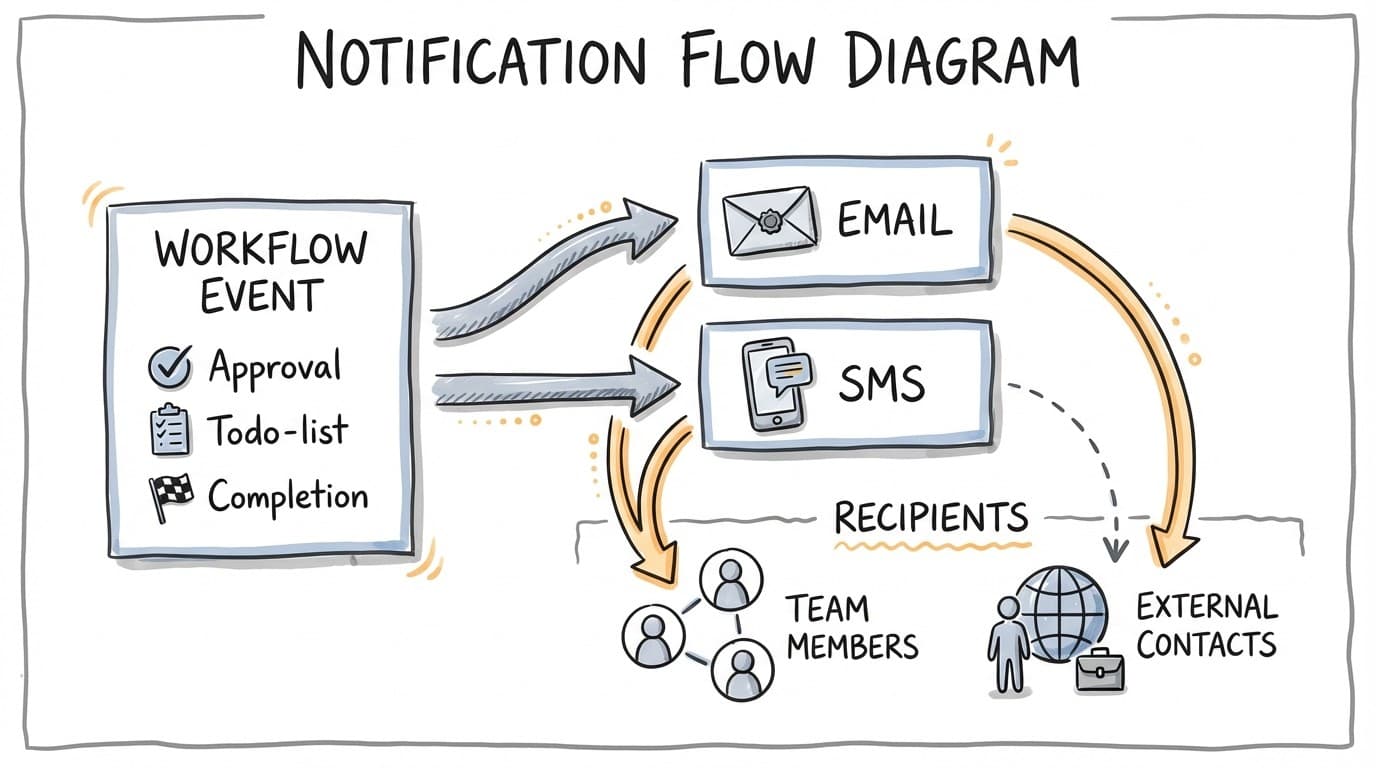
Workflow notifications keep people informed when actions are needed. You can send notifications via email or SMS, to team members or external contacts, triggered by specific workflow events.
Configuration
Notification settings are configured at the workflow level:
{
  "notifications": {
    "enabled": true,
    "channels": {
      "email": true,
      "sms": false
    },
    "triggers": ["approval", "todo-list", "completion"],
    "recipients": [
      {
        "type": "team-member",
        "userId": "user-123"
      },
      {
        "type": "external",
        "name": "Client Name",
        "email": "client@example.com",
        "phone": "+1234567890"
      }
    ]
  }
}
Settings Reference
| Property | Type | Description |
|---|---|---|
| enabled | boolean | Master toggle for notifications |
| channels.email | boolean | Send email notifications |
| channels.sms | boolean | Send SMS notifications |
| triggers | string[] | Events that trigger notifications |
| recipients | array | Who receives notifications |
Notification Triggers
Choose which events should send notifications:
| Trigger | When Sent | Step Types |
|---|---|---|
| approval | When approval is needed | Approval steps, Prompt with guardrails |
| todo-list | When a checklist is presented | Todo-list steps |
| completion | When workflow finishes | Any workflow completion |
Recipients
Team Members
Add team members by their user ID. They will receive notifications at their registered email/phone.
{
  "type": "team-member",
  "userId": "user-123"
}
External Contacts
Add external contacts with their name and contact information directly.
{
  "type": "external",
  "name": "John Smith",
  "email": "john@example.com",
  "phone": "+1234567890"
}
Email Content
Email notifications are automatically generated based on the trigger type and workflow context. They include:
- Workflow name and description
- What action is needed (for approval/todo-list triggers)
- Link to the workflow run
- Context from the current step
SMS Content
SMS notifications are concise summaries with a link to take action:
[Magpai] Approval needed for "Weekly Report" workflow. View: https://...
Setting Up Notifications
- Open your workflow in the editor
- Navigate to the Notifications section in settings
- Enable notifications with the toggle
- Select which channels to use (email and/or SMS)
- Choose which triggers should send notifications
- Add recipients (team members or external contacts)
- Save the workflow
Best Practices
- Only enable triggers you actually need to avoid notification fatigue
- Use SMS sparingly - reserve for urgent approval requests
- Add only relevant recipients to each workflow
- Test notifications with a team member before adding external contacts
- Use the
completiontrigger for workflows others are waiting on
Related
- Approval Steps - Steps that trigger approval notifications
- Todo-List Steps - Steps that trigger todo-list notifications
- Approvals Guide - Understanding approval workflows