Scheduling
Automate workflow runs on a schedule using cron expressions or natural language.
Overview
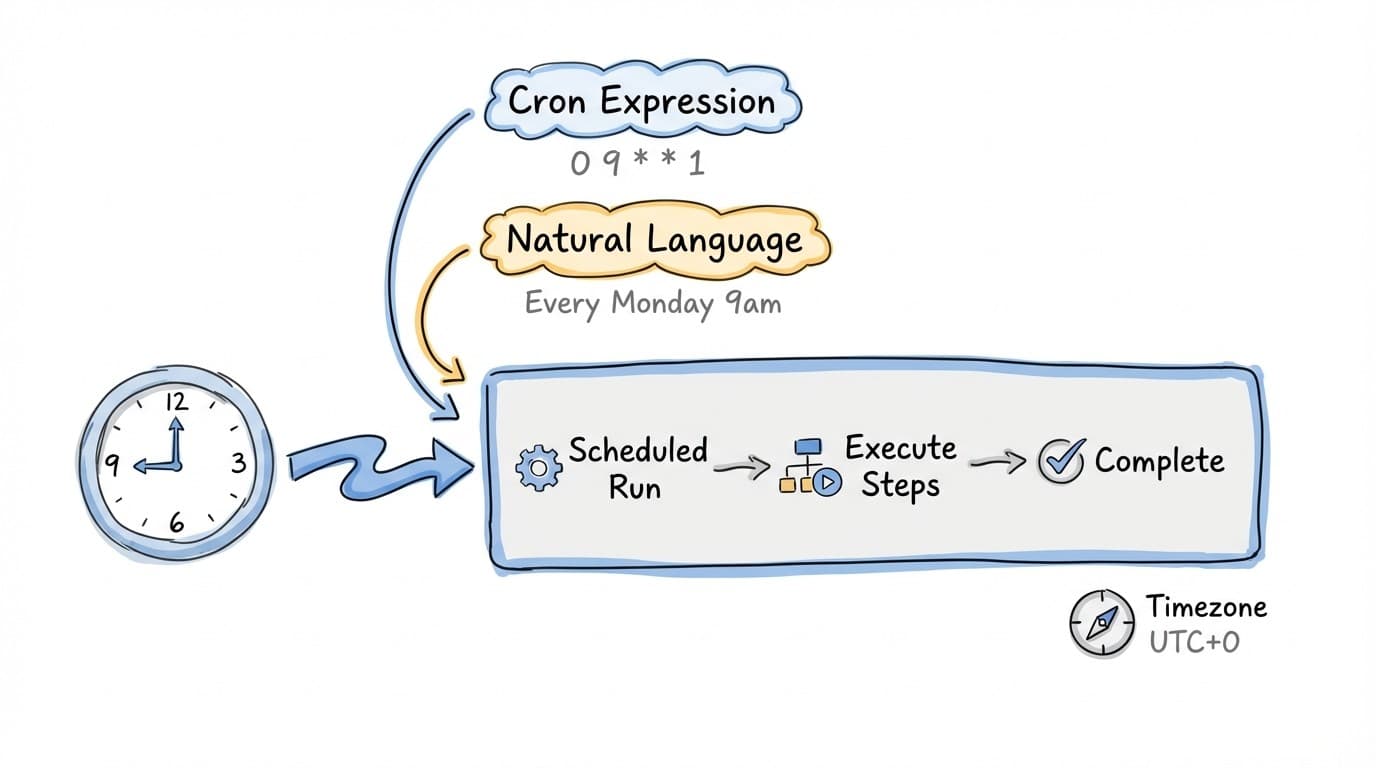
Schedule workflows to run automatically at specific times. You can use natural language like "Every Monday at 9am" or standard cron expressions. Scheduled workflows use your team's timezone for accurate timing.
Configuration
Schedule settings are configured at the workflow level:
{
  "schedule": {
    "enabled": true,
    "cronExpression": "0 9 * * 1",
    "naturalLanguagePrompt": "Every Monday at 9am",
    "lastRun": "2024-01-08T09:00:00Z",
    "nextRun": "2024-01-15T09:00:00Z"
  }
}
Settings Reference
| Property | Type | Description |
|---|---|---|
| enabled | boolean | Toggle scheduling on/off |
| cronExpression | string? | Standard cron syntax |
| naturalLanguagePrompt | string? | Human-readable schedule |
| lastRun | string? | Last execution timestamp (ISO) |
| nextRun | string? | Next scheduled execution (ISO) |
Natural Language Scheduling
Write schedules in plain English. Maggie converts them to cron expressions automatically.
Examples
| Natural Language | Cron Expression |
|---|---|
| Every Monday at 9am | 0 9 * * 1 |
| Daily at 8:30am | 30 8 * * * |
| Every weekday at 5pm | 0 17 * * 1-5 |
| First of every month at noon | 0 12 1 * * |
| Every hour | 0 * * * * |
| Every 15 minutes | */15 * * * * |
Cron Expressions
For precise control, use standard cron syntax:
┌───────────── minute (0 - 59)
│ ┌───────────── hour (0 - 23)
│ │ ┌───────────── day of month (1 - 31)
│ │ │ ┌───────────── month (1 - 12)
│ │ │ │ ┌───────────── day of week (0 - 6, Sun - Sat)
│ │ │ │ │
* * * * *
Common patterns:
*- Every value*/5- Every 5 units1-5- Range (1 through 5)1,3,5- Specific values
Timezone Handling
Scheduled workflows use your team's configured timezone. This ensures that "9am" means 9am in your local time, regardless of server location.
To check or change your timezone: Go to Team Settings → General → Timezone.
Scheduled Execution
When a scheduled workflow runs:
- The workflow starts with default inputs (no user interaction)
- Form steps use their default values
- If a step requires user input without defaults, the workflow pauses
- Run source is marked as
cron - Notifications are sent based on workflow settings
Handling Pauses
Scheduled workflows can still pause if they encounter:
- Approval steps (waiting for review)
- Todo-list steps (waiting for task completion)
- Form steps without default values
- Prompt steps with guardrails that trigger
Enable notifications to alert team members when scheduled workflows need attention.
Setting Up a Schedule
- Open your workflow in the editor
- Navigate to the Schedule section in settings
- Enable scheduling with the toggle
- Enter a natural language schedule or cron expression
- Review the computed next run time
- Save the workflow
Monitoring Scheduled Runs
Track scheduled workflow executions:
- View run history in the workflow's Runs tab
- Check
lastRunandnextRunin settings - Enable completion notifications for alerts when runs finish
- Filter runs by source to see only scheduled executions
Best Practices
- Ensure all form inputs have default values for unattended execution
- Enable notifications for approval/todo-list triggers
- Test workflows manually before enabling schedules
- Use natural language - it's easier to maintain than cron
- Consider your team's working hours when scheduling
- Disable schedules for workflows under development
Related
- Notifications - Alert on scheduled run events
- Form Steps - Setting default values for automation
- Webhook API - Trigger workflows programmatically